Batch Convert PDF to JPG Without Uploading Anything (How It Works)
How client-side PDF to JPG conversion actually works, why it matters for sensitive documents, and the real browser memory limits nobody mentions when converting large batches.
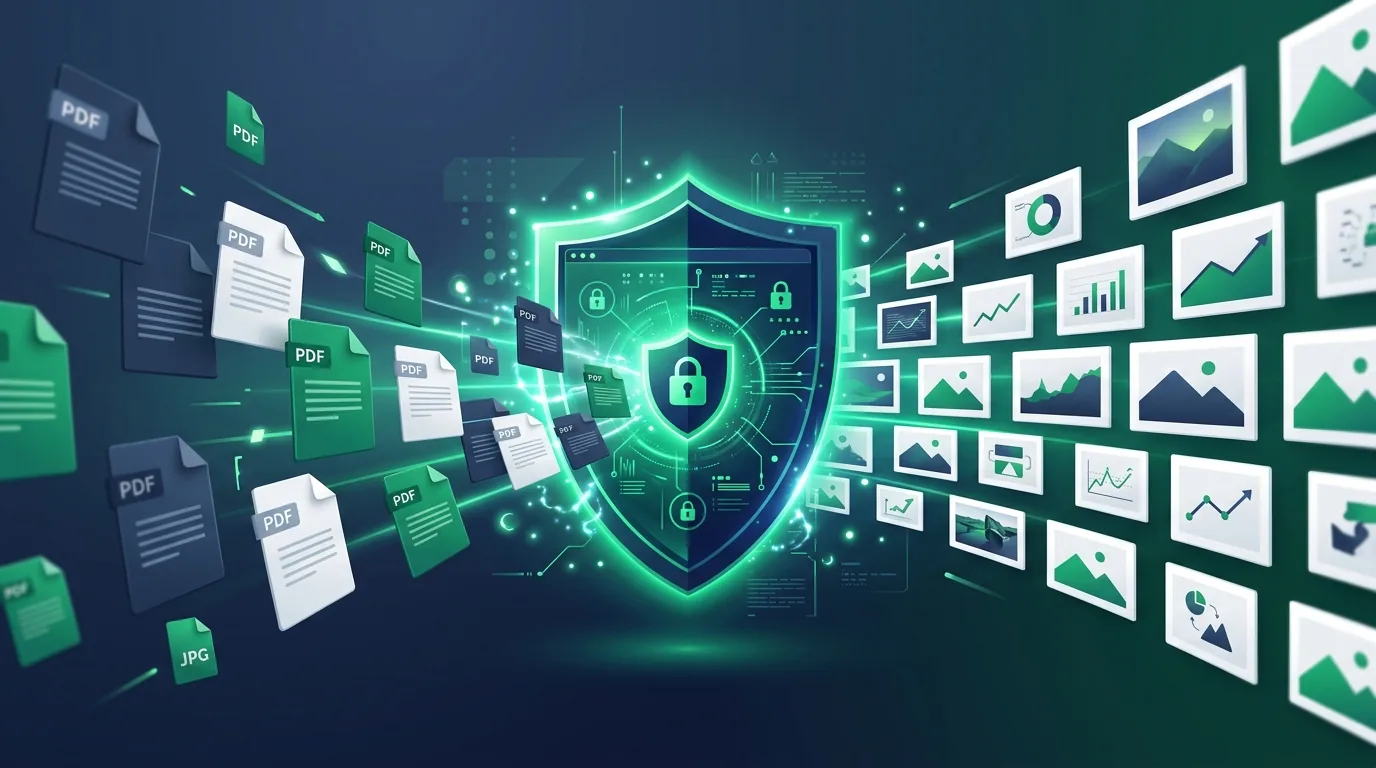
Uploading a bank statement, signed contract, or tax document to an unfamiliar website to convert it to JPG means trusting a stranger's server with a file you'd probably rather not hand over at all — even if their privacy policy promises deletion. There's a real alternative: conversion that happens entirely inside your browser, where the file never actually leaves your device.
This isn't just a marketing claim worth taking at face value. Here's exactly how it works, what its real technical limits are, and how to batch convert a large set of PDFs without your browser tab crashing halfway through.
What "Client-Side" Conversion Actually Means
When a tool processes your PDF client-side, your browser reads the file locally using the File API, renders each page directly onto an HTML canvas element using a PDF-rendering library, and then exports that canvas as a JPG image — all inside the browser tab, with zero network request carrying your file's contents anywhere.
You can verify this yourself without trusting anyone's claims: open your browser's Developer Tools, go to the Network tab, and run a conversion. If it's genuinely client-side, you'll see no upload request containing your file data — just the page's own JavaScript executing locally.
Why This Matters for Sensitive Documents
Once a file is uploaded to a server, you're trusting that company's security practices, retention policy, and staff access controls — regardless of how good their stated privacy policy sounds. A server breach, an employee with inappropriate access, or a "we keep files for 24 hours for support purposes" policy all become risks the moment upload happens. Client-side processing removes that trust requirement entirely: there's no server-side copy of your document to breach, retain, or misuse, because one was never created.
The Real Limits of Browser-Based Batch Processing
This is the part most "100% secure, no limits" marketing copy skips. Client-side processing runs on your device's hardware, not a data center's — and that has real consequences for large batches:
Simple PDFs under ~10MB: Render smoothly with no issues.
Large or image-heavy PDFs: Can consume dramatically more memory than expected — one documented case showed a PDF rendering library using 3GB of memory for a file Adobe Acrobat handled in just 650MB.
iOS Safari specifically: Enforces a hard canvas memory limit of roughly 256–384MB depending on device — hit this ceiling and the tab can crash without warning.
Very large batches processed simultaneously: Multiply the per-file memory cost across dozens of files at once, and memory pressure compounds fast.
None of this means client-side processing doesn't work — it means "unlimited batch size" isn't an honest claim, and a well-engineered tool has to actively manage these limits rather than just hoping they don't come up.
How Well-Built Tools Avoid Crashing Your Tab
Production client-side PDF tools handle this with a few specific techniques rather than brute-forcing everything at once:
Web Workers run the heavy processing off the browser's main thread, so the page's UI stays responsive instead of freezing while a large file processes.
Sequential processing for large files, parallel for small ones — a batch of small PDFs can process simultaneously without issue, but large files get queued one at a time specifically to avoid compounding memory pressure across the whole batch.
Temporary storage outside of RAM — rather than holding every rendered page in browser memory at once, well-built tools can use the browser's Origin Private File System to hold intermediate data, keeping peak memory usage far lower even when processing large total file sizes.
Releasing memory immediately after each file — explicitly freeing image buffers and object URLs as soon as each file finishes, rather than letting them accumulate across a large batch.
Client-Side vs. Server-Side: The Actual Tradeoff
Privacy: Client-side files never leave your device, while server-side requires trusting the provider's infrastructure.
Batch size ceiling: Client-side is bounded by device memory, while server-side depends on server compute.
Performance on older devices: Client-side depends on local CPU/RAM, while server-side offers consistent processing power.
Speed on modern hardware: Client-side skips network upload and download roundtrips entirely.
Offline capability: Client-side works completely offline once loaded, while server-side requires continuous internet access.
Practical Tips for Batch Converting Large PDF Sets
Close unnecessary browser tabs before a large batch to free up available device memory.
Do large batches on desktop rather than mobile, since desktop browsers have significantly higher canvas memory thresholds than mobile Safari.
If one PDF in your batch is unusually large or image-heavy, convert it separately rather than bundling it with dozens of smaller files.
Which Documents This Actually Matters Most For
Financial documents: Bank statements, tax returns, and pay stubs containing sensitive account numbers and income details.
Legal contracts: Signed agreements and NDAs containing confidential clauses.
Medical and insurance records: Files subject to stringent patient privacy expectations and HIPAA compliance.
HR and employment records: Offer letters, ID scans, and background check documents containing personal identity data.
Frequently Asked Questions
Is it actually safe to convert sensitive documents like bank statements online?
It's safe specifically when the tool processes the file entirely client-side, meaning the document is never uploaded to a server at all. You can verify this yourself by checking your browser's Network tab during conversion — no upload request means no server ever received your file.
How can I tell if a PDF converter is really processing files locally and not uploading them?
Open your browser's Developer Tools, switch to the Network tab, and run a conversion. If the tool is genuinely client-side, you won't see any outgoing request carrying your file's data — just local JavaScript execution.
Why does my browser tab freeze or crash when batch converting many PDFs?
Client-side processing uses your device's own memory, and large or image-heavy PDFs can consume significantly more memory than their file size suggests — sometimes several times more. Very large batches processed all at once compound this, which is why well-built tools process large files sequentially rather than all in parallel.
Is there a limit to how many PDFs I can batch convert in a browser?
There's no fixed number, but practical limits exist based on your device's available memory and the size and complexity of the PDFs involved. Simple, smaller PDFs in reasonable batch sizes work reliably; very large or image-heavy files in large batches are more likely to hit memory limits, especially on mobile devices.
Is client-side conversion slower than uploading to a server?
For typical batch sizes on modern desktop hardware, the difference is usually minimal, and client-side skips the network upload and download time entirely. On older devices or with very large files, client-side processing can be slower since it's limited by your device's own processing power rather than a server's.
Batch convert your PDFs to JPG entirely in your browser — nothing uploaded, nothing stored — at Toolkito PDF to JPG Converter.
Toolkito Engineering Team — Reviewed by TeXCodes Systems Architecture
Contributing writer at Toolkito
More from the Blog & Tools

Tutorials
How to Remove Background from Images for Free Online
PDF to JPG Converter
Batch convert PDF documents to high-resolution JPG images directly in your browser.
Web Performance