Extracting Text from Images using Free AI OCR
Stop retyping! Learn how Optical Character Recognition (OCR) uses AI to instantly pull editable text from screenshots and photos.
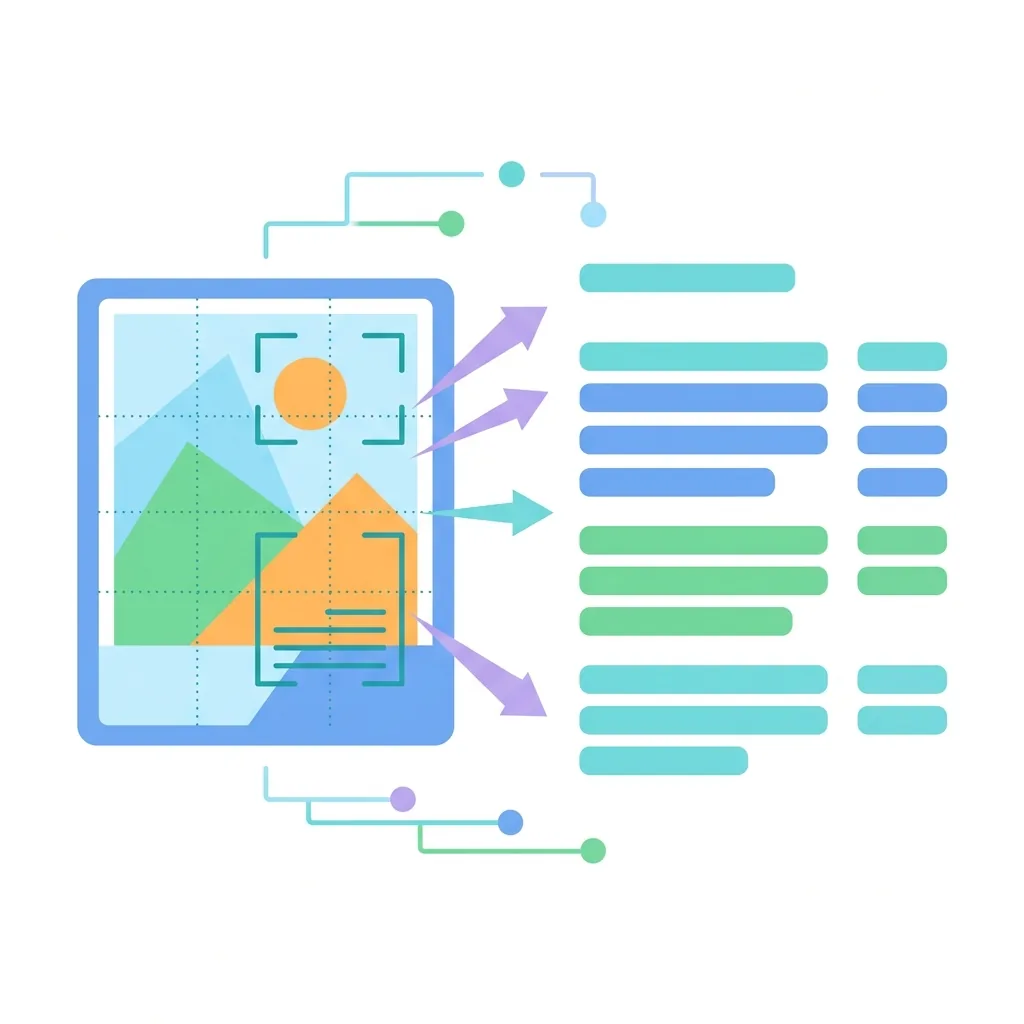
You just received a scanned contract via email. Your colleague sent a screenshot of a spreadsheet. Your student notes exist only as a photo on your phone. In every one of these situations, you are staring at text you cannot edit, copy, search, or use — because it is locked inside an image file.
This is one of the most frustrating bottlenecks in digital work today. And it is completely solvable in under 30 seconds using free online OCR technology — no software installation, no account creation, no technical knowledge required.
This guide explains exactly how to extract text from any image for free, which file types work best, what OCR technology actually does under the hood, and how to get accurate results even from blurry or low-quality photos.
What Is OCR and Why Does It Matter in 2026?
OCR stands for Optical Character Recognition. It is the technology that allows a computer to look at an image and read the text inside it — exactly the way a human would, but in milliseconds.
Before OCR existed, the only way to digitize a physical document was to type it out manually, word by word. A legal firm processing 500 contracts per week would need a team of data entry clerks working full time just to keep up. OCR eliminated that bottleneck entirely.
In 2026, OCR has become dramatically more accurate thanks to AI-powered recognition models. Modern tools like Toolkito's Image to Text converter use advanced machine learning algorithms that can handle:
Printed text in standard fonts
Handwritten notes and cursive writing
Screenshots from any device or application
Scanned documents with mixed quality
Photos taken in imperfect lighting conditions
Multi-column layouts like newspapers and brochures
Mathematical equations and special characters
The practical result is that what once required expensive desktop software can now be done entirely in your browser, for free, in seconds.
How to Extract Text from an Image — Step by Step
Using Toolkito's free Image to Text tool, the entire process takes under 30 seconds regardless of your technical experience.
Step 1 — Open the Tool
Navigate to Toolkito's Image to Text converter. No account creation required. No email address needed. The tool is available immediately.
Step 2 — Upload Your Image
Drag and drop your image file into the upload zone, or click to browse your device. Toolkito accepts standard image formats including JPG, JPEG, PNG, and WEBP.
Step 3 — Let OCR Process Your File
The moment your file is uploaded, Toolkito's OCR engine begins analyzing the image. It identifies text regions, corrects skew and distortion, enhances contrast for low-quality images, and converts every character into machine-readable text. This typically takes between 2 and 8 seconds depending on file size.
Step 4 — Copy, Edit, or Download
The extracted text appears in a clean editable text area. You can copy it directly to your clipboard, make edits inline, or download it as a plain text file. The original formatting — paragraphs, line breaks, and spacing — is preserved as closely as possible.
That is the entire process. Four steps, under 30 seconds, no friction.
8 Real-World Use Cases for Online OCR
Understanding when to use an image to text converter changes how efficiently you work every single day. Here are the most common situations where free OCR saves significant time:
1. Converting Screenshots to Editable Text
This is the most searched use case for OCR in 2026. When someone sends you a screenshot of a document, a chat message, a code snippet, or a table — you cannot select or copy that text. It is just pixels.
Upload the screenshot to Toolkito and within seconds you have fully selectable, editable text. This is particularly valuable for developers who receive screenshots of error messages, designers reviewing spec documents, and anyone in a remote work environment where screenshots replace proper file sharing.
2. Digitizing Handwritten Notes
Students, researchers, and professionals who take handwritten notes face the same challenge — the notes exist on paper or as a photo, but cannot be searched, shared as text, or imported into note-taking apps like Notion or Obsidian.
Modern AI-powered OCR handles handwriting recognition with impressive accuracy for clear, legible handwriting. Upload a photo of your notebook page and receive a typed version you can paste anywhere. This works especially well for lecture notes, meeting notes, and research observations written on whiteboards.
3. Extracting Text from Scanned Documents
When physical documents are scanned and saved as image files, all the text becomes visually readable but digitally inaccessible. Law firms, accountants, healthcare workers, and administrative staff deal with this problem daily — contracts, invoices, prescriptions, and forms that exist as image scans rather than editable documents.
Toolkito's OCR handles scanned documents effectively even when the scan quality is less than perfect. Slightly blurry scans, skewed pages, and faded ink are all processed using image enhancement algorithms before text extraction begins.
4. Copying Text from Social Media Images
Text embedded in Instagram posts, Twitter graphics, Pinterest infographics, and WhatsApp shared images cannot be selected or copied directly. This frustrates anyone trying to reference a quote, capture a recipe, save an address, or note down a phone number from a visual post.
Upload the image to Toolkito and extract the embedded text in seconds. This applies equally to memes with text overlays, event flyers with dates and addresses, and promotional images with product details.
5. Processing Receipts and Invoices for Expense Management
Freelancers and business owners who track expenses manually spend hours transcribing receipt data into spreadsheets or accounting software. Photographing a receipt and running it through OCR produces a text version of every line item, total, date, and vendor name — ready to paste directly into your expense tracking system.
6. Making Documents Accessible to Screen Readers
Images containing text are completely inaccessible to visually impaired users relying on screen readers, because screen readers cannot interpret pixel-based text. Converting an image to text creates a machine-readable version that screen readers can process, making the content accessible to a much wider audience.
7. Extracting Data from Physical Forms and Tables
Questionnaires, survey forms, product specifications, and data tables printed on paper can be photographed and converted to text using OCR. While structured table data may require some cleanup after extraction, the process is still dramatically faster than manual transcription.
8. Translating Text Locked in Images
Extracted text can immediately be pasted into Google Translate or DeepL, making OCR a critical first step in translating foreign-language documents that exist only as scanned images or photos.
What Image Types Give the Best OCR Accuracy?
The accuracy of text extraction depends heavily on input image quality. Here is what to know before uploading:
High accuracy — almost always perfect:
High-resolution screenshots (1x or 2x retina)
Clearly printed documents scanned at 300 DPI or higher
Photos taken in good lighting with minimal motion blur
Standard readable fonts with good contrast against background
Good accuracy — works well with minor cleanup:
Moderate resolution photos of printed text
Handwritten notes with consistent, clear lettering
Scanned documents with slight skew or minor spots
Images with text on lightly textured backgrounds
Lower accuracy — may need manual correction:
Very low resolution images under 72 DPI
Heavily stylized or decorative fonts
Text on highly complex or patterned backgrounds
Blurry photos with significant motion or focus blur
Cursive handwriting with connected, flowing characters
The single most impactful improvement you can make is increasing image resolution before uploading. A photo taken 30cm closer to the document will dramatically improve OCR accuracy.
Why Choose Toolkito's Image to Text Converter?
There are dozens of OCR tools available online. Here is what makes Toolkito different in terms of actual user experience:
No account required, ever. The majority of competitor tools force you to create an account before extracting text. Toolkito requires nothing — open the tool, upload your image, get your text. This is especially important for users handling sensitive documents who do not want to hand over their email address to a service they will use once.
Complete privacy by design. Uploaded files are encrypted during transmission and permanently deleted from Toolkito's servers within one hour of processing. Your documents are never stored, analyzed, or shared. This matters enormously for legal documents, medical records, financial statements, and any personally identifiable information.
Works on every device. Toolkito runs entirely in the browser. There is no app to install, no plugin to download, no desktop software required. It works identically on Windows, Mac, Linux, iOS, and Android — including mobile browsers.
Supports standard image formats. JPG, JPEG, PNG, and WEBP files are perfectly supported without any conversion required on your end.
Free tier with generous limits. Free users can process multiple images per day without hitting a paywall for basic conversions. For high-volume professional use, Toolkito Pro removes all limits entirely.
Frequently Asked Questions About Image to Text Conversion
Can OCR read handwriting accurately?
AI-powered OCR handles clear, printed-style handwriting very well, often achieving accuracy above 90%. Highly stylized cursive writing or very messy handwriting will produce lower accuracy results that may require some manual correction. The best results come from clean, dark ink on white paper photographed in good lighting.
Is it safe to upload confidential documents?
Toolkito processes files securely through the cloud using the Gemini AI model, employing encrypted connections. All uploaded files are automatically deleted from our servers within one hour of processing. No human ever views your documents.
What languages does Toolkito's OCR support?
The OCR engine supports all major Latin-script languages including English, Spanish, French, German, Italian, Portuguese, and Dutch, as well as Arabic, Chinese, Japanese, Korean, Hindi, and many others.
Can I extract text from a PDF?
Direct PDF upload is not currently supported. However, you can easily take a screenshot of the specific page or paragraph in your PDF and upload that image to extract the text instantly.
How long does text extraction take?
Most images are processed within 2 to 5 seconds. Larger files may take up to 15 seconds. Processing happens securely through the cloud using the Gemini AI model, so your device speed does not affect the result.
Start Extracting Text from Images Right Now
Every day you spend manually retyping text that already exists in images is time you will never get back. Whether you are digitizing handwritten notes, copying text from a screenshot, processing scanned invoices, or extracting data from photos — Toolkito's free Image to Text converter handles every case instantly, privately, and without requiring a single account or download.
Try Toolkito Image to Text — Free, No Signup →
Toolkito Engineering Team — Reviewed by TeXCodes Systems Architecture
Contributing writer at Toolkito
More from the Blog & Tools

Tutorials
How to Remove Background from Images for Free Online
Free AI Image to Text (OCR)
Extract editable text from screenshots, scanned documents & photos instantly.
Web Performance