EXIF Metadata Viewer: Why Your Photo Lost Its Location Data (And How to Check Before You Post)
Every photo carries invisible EXIF metadata like GPS coordinates and camera settings. Learn why metadata disappears, how social platforms scrub it, and how to check your photos.
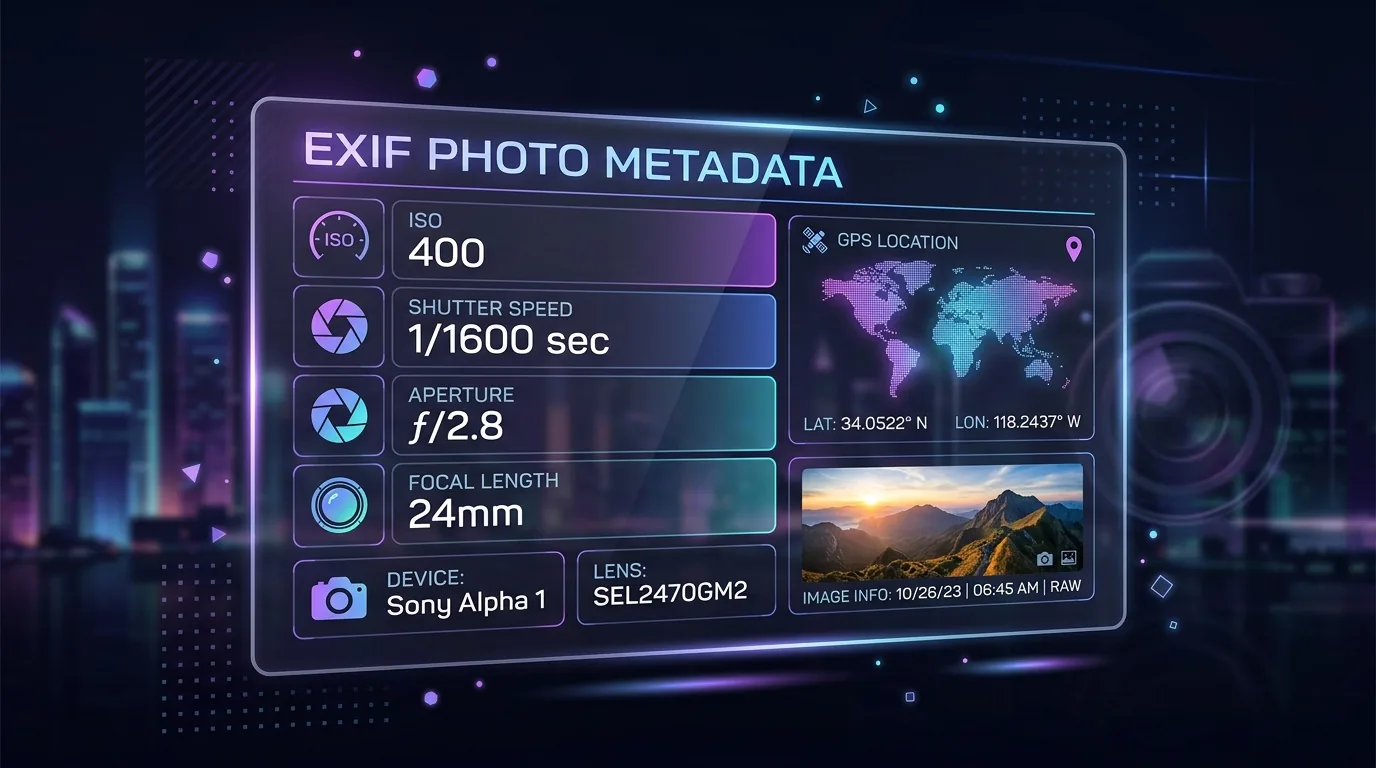
Every photo you take carries two layers of information: the image itself, and an invisible data block called EXIF metadata — camera settings, GPS coordinates, device model, and the exact timestamp the shutter opened. Most people never see this layer, until something goes wrong: a photo that should show a location doesn't, or worse, a photo they thought was "clean" turns out to reveal exactly where it was taken. This guide covers both directions — how to check what's hiding in your photos, and why metadata sometimes disappears when you least expect it.
Why Your Photo Lost Its Location Data
If you've noticed a photo that used to show GPS coordinates no longer has them, one of a few things happened:
1. iOS Share Sheet Privacy Filter
Apple's Share Sheet has an "Options" toggle at the top of the send screen that can default to withholding location data on transfer — separate from your camera's actual location settings. Tap Options before sending and check whether "Location" or "All Photos Data" is switched on.
2. Browser or App Re-encoding Pipelines
When an image passes through a canvas-based editing tool like an Image Compressor, web upload form, or certain messaging apps, the pixel data gets redrawn into a new file — and metadata headers simply don't get copied over in that process. This is different from deliberate stripping; it's a side effect of how re-encoding pipelines work.
3. Creative Software Export Presets
Photoshop's "Save for Web" and similar export tools in Affinity Photo and Lightroom often default to stripping EXIF and IPTC data to reduce file size, unless you manually set the metadata option to "All Metadata" in export preferences.
4. Format Conversion and Makernote Stripping
Converting a photo from a camera's RAW format (like Apple ProRAW or Adobe DNG) into a compressed web format can drop vendor-specific metadata tags — especially undocumented "Makernote" fields that store autofocus and lens data in a proprietary structure.
One important distinction: your operating system's "file modified date" is not the same as the photo's embedded DateTimeOriginal tag. The filesystem date reflects when the file was last touched on your device — the EXIF timestamp reflects when the shutter actually opened. If you're troubleshooting a missing or wrong date, check which one you're actually looking at.
Does Instagram, WhatsApp, or Facebook Remove EXIF Data?
Short answer: yes, for anything you post publicly — but the full picture is more nuanced than most people realize.
Instagram: Strips metadata on Feed, Stories, and Reels. It re-encodes every upload; Direct Messages occasionally preserve high-res EXIF in uncompressed send modes.
WhatsApp: Strips metadata on standard Gallery sends. However, "Send as Document" mode bypasses compression entirely and delivers the raw file with full GPS and camera data intact.
Facebook: Public copies are scrubbed, but internal systems process location data before the public version is generated.
X (Twitter): Strips GPS and camera settings on upload to protect user privacy and save bandwidth.
Discord: Embedded previews lack EXIF, but downloading the original attachment or clicking "Open Original" can preserve it.
Signal: Complete local scrub. Strips EXIF, IPTC, and XMP on-device before the file ever leaves your phone.
iMessage: Preserves full GPS data on direct transfers unless you manually strip it via the Share Sheet.
The pattern to remember: public-facing copies get scrubbed for bandwidth and compression reasons, not necessarily as a privacy feature — and "alternate send modes" (Document mode, direct attachments, AirDrop) frequently bypass that scrubbing entirely. If you're sharing a photo through anything other than the standard in-app gallery picker, don't assume the platform stripped your metadata.
How to Check If a Photo Has Location Data (Before You Post It)
This matters most for three groups: marketplace sellers photographing items inside their home, parents sharing photos of their kids, and anyone sending images through channels that skip automatic scrubbing (email attachments, cloud storage links, messaging "document mode").
The check takes under 10 seconds:
Step 1 — Drop the image into an EXIF viewer. No upload required — client-side tools like Toolkito EXIF Data Viewer process the file entirely in your browser memory.
Step 2 — Inspect GPSLatitude and GPSLongitude fields.
Step 3 — Strip or adjust camera settings. If present, either use a stripping tool before sharing, or manually toggle location off in your camera/phone settings going forward. You can also convert photos using creative tools like our Pencil Sketch Filter or inspect binary payloads with a Base64 Encoder / Decoder.
Worth noting: Windows' built-in "Remove Properties" dialog and macOS Preview's location-removal toggle both work for the obvious GPS tags, but neither reliably clears secondary identifiers like camera serial numbers or embedded thumbnail previews — which some forensic extraction tools can still read. A dedicated EXIF tool that shows you the complete tag list, not just the headline fields, gives you an actual guarantee rather than a partial one.
For Photographers: Reading Camera Settings From Any Image
If you've ever seen a photo you admired and wanted to know the exact aperture, shutter speed, or ISO used to shoot it, that information is sitting in the EXIF block:
ExposureTime: Shutter speed — explains motion blur or freeze-frame sharpness.
FNumber: Aperture — controls depth of field and background blur.
ISOSpeedRatings: Sensor sensitivity — explains grain or noise in low light.
LensModel: Exact lens used, useful for gear research.
DateTimeOriginal: The precise moment the shutter opened.
OffsetTimeOriginal: UTC timezone offset at capture — resolves timezone ambiguity in timestamps.
This same tag set is used in investigative and OSINT (open-source intelligence) work — journalists and researchers use GPSLatitude/GPSLongitude alongside DateTimeOriginal to verify when and where an image was actually taken, cross-referencing camera orientation against known satellite imagery or shadow angles for authenticity checks.
Frequently Asked Questions
Why does my iPhone photo have no location data after I sent it?
Most likely the Share Sheet's "Options" toggle had location data switched off for that transfer, or the receiving app re-encoded the image during upload. Check Share Sheet options before sending, and note that the setting doesn't always persist between sends.
Is it safe to assume Instagram removes all my location data?
For the publicly visible post, yes — Instagram re-encodes images and strips EXIF during that process. But this doesn't mean the platform never saw your original coordinates; it means the public copy doesn't display them.
Can I recover EXIF data after it's been stripped?
No — once a file has been re-encoded without its metadata header, that data doesn't exist anywhere except the original file it came from. Always check metadata on the original file before sharing, not after.
Do I need to upload my photo to check its metadata?
No — client-side EXIF viewers process the file entirely in your browser using JavaScript, meaning the image itself never leaves your device or touches a server.
Inspect your photo's camera settings, lens model, and GPS data instantly at Toolkito EXIF Data Viewer.
Toolkito Engineering Team — Reviewed by TeXCodes Systems Architecture
Contributing writer at Toolkito
More from the Blog & Tools

Tutorials
How to Remove Background from Images for Free Online
EXIF Metadata Viewer
View camera settings, lens details & GPS coordinates instantly. 100% private.

Web Performance