How to Create a Free vCard QR Code for Digital Business Cards (2026)
Learn how to turn your contact info into a scannable vCard QR code. Step-by-step RFC-compliant setup, static vs dynamic comparison, and print export tips.
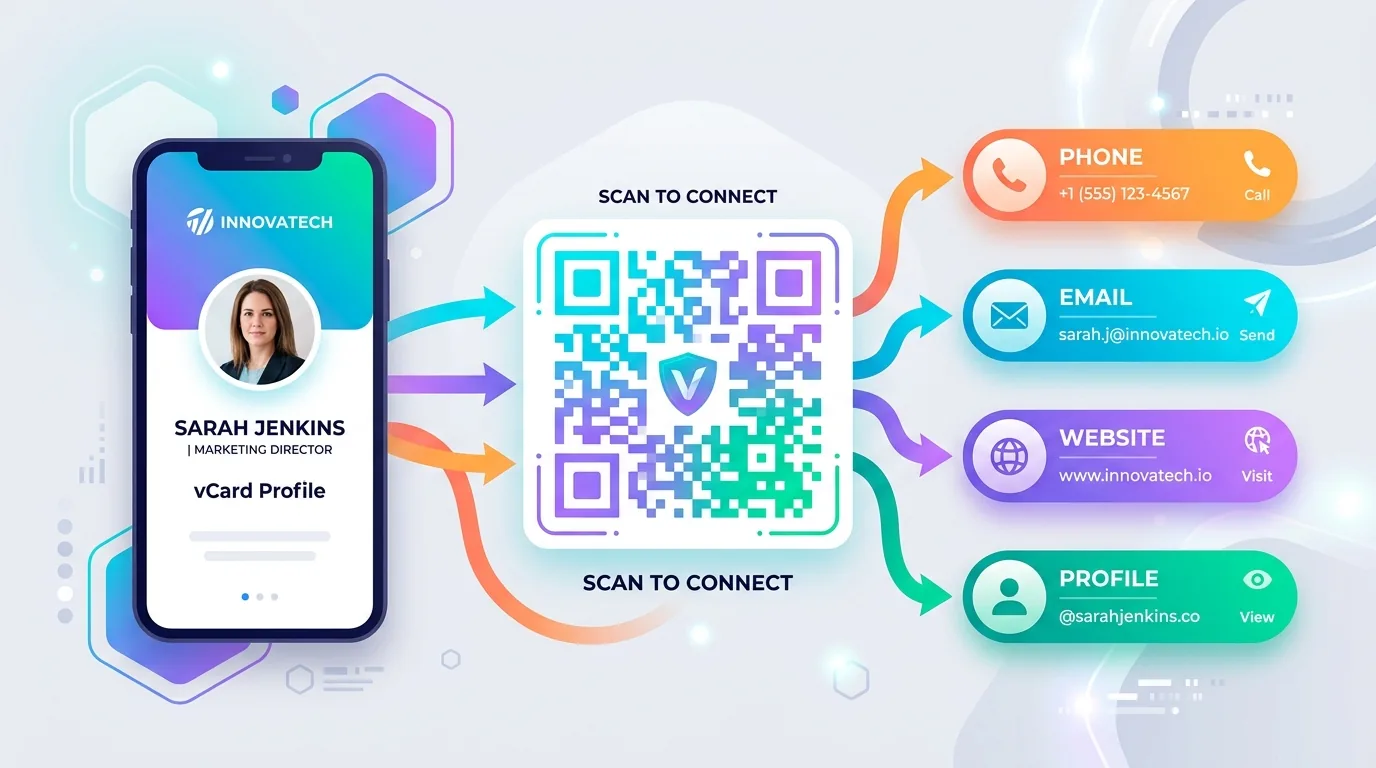
Paper business cards get lost, thrown away, or buried in a drawer within a week. A vCard QR code fixes that in one scan: anyone who points their phone camera at it gets your name, job title, company, phone number, email, and website saved directly into their native Contacts app — with zero manual typing and zero app downloads.
Most online generators get this wrong. They either output a standard URL code that forces the user through an external landing page, or they generate an unescaped static string that fails silently on modern phones. This guide breaks down how to build a properly formatted vCard QR code that works across iOS and Android, when to choose a dynamic routing link over a static file, and how to size it correctly for print.
What Is a vCard QR Code (And How Is It Different From a Link?)
A standard QR code opens a webpage in a browser. A vCard QR code encodes structured contact data directly into the matrix — or, for dynamic codes, behind a routing endpoint. When a phone camera scans it, the operating system recognizes the contact format and immediately opens a native "Add to Contacts" prompt instead of a browser tab.
The vCard Standard: 3.0 vs 4.0, and Why the RFC Number Matters
Not all "contact QR codes" are built the same, and this is the part most tutorials get wrong: vCard 3.0 is defined by RFC 2426, not RFC 6350. RFC 6350 defines vCard 4.0, published later in 2011 to consolidate and modernize the format.
In practice, most QR code generators — and most legacy contact-reading apps — still default to vCard 3.0 (RFC 2426) because it has the widest backward compatibility across iOS, Android, and older feature-phone contact readers. vCard 4.0 adds newer fields (like KIND and GENDER) but isn't universally supported yet, so unless you specifically need a 4.0-only field, generating your code as 3.0 is the safer default.
Why Field Escaping Breaks Cheap Generators
If any of your details contain a comma or semicolon — a company name like "Acme, Inc." or a title with a comma in it — a plain text-to-QR tool will output a malformed string. When iOS or Android parsers hit an unescaped delimiter, they either truncate the entry or fail to show the "Save Contact" popup at all. A proper vCard generator automatically backslash-escapes these characters (Acme, Inc.) so the data survives intact on every platform.
Static vs Dynamic vCard QR Codes: Which Should You Choose?
Static vCard codes have contact information encoded permanently into the QR matrix itself. They work 100% offline but cannot be edited or tracked. Dynamic vCard codes host contact details on a server with a short routing URL, allowing dashboard edits and scan analytics without reprinting.
The rule of thumb: if the code is going on something that costs money to reprint — embossed business cards, acrylic signage, event lanyards — go dynamic. A title or phone number change becomes a dashboard edit instead of a reprint order.
Print Sizing and Visual Requirements
A vCard code carries more data than a simple URL, so it needs slightly more resolution to stay scannable at small sizes:
Minimum size (static): 2.0 × 2.0 cm (0.8 × 0.8 in)
Minimum size (dynamic): 1.5 × 1.5 cm — lower data density scans smaller
Quiet zone margin: 4 modules of blank space on all sides (ISO/IEC 18004)
Contrast ratio: At least 3:1 between code and background
File format for print: Vector — SVG or EPS, never a scaled-up PNG
The quiet zone is the most commonly cropped element in tight designs — trimming that blank margin to fit a border prevents the scanner from locating the corner finder patterns at all, and the code stops working even though it looks fine to the eye.
Adding Your Logo Safely
A logo in the center makes the code feel like a branded asset instead of a generic square, but it also blocks real data underneath it. To do this without breaking the scan:
Set Error Correction Level H (High) — this adds up to 30% redundant recovery data, enough for the scanner to reconstruct the area your logo covers.
Never let the logo touch the three large corner squares — those finder patterns are what the scanner uses to detect and orient the whole code.
Keep the logo under ~20–25% of the total code area — beyond that, even Level H correction can't reliably compensate.
Troubleshooting Common vCard Scan Failures
Phone opens it as plain text instead of a contact: the generator likely omitted the BEGIN:VCARD / END:VCARD headers or the VERSION line. This is a generator problem, not a printing problem.
Camera won't focus or recognize the code at all: usually the print is under 2 × 2 cm, or the quiet zone margin got cropped out of the design.
Some fields are missing after saving on iPhone: check for unescaped commas or semicolons in the company name or address fields; this is the #1 cause of silently dropped data on iOS specifically.
Frequently Asked Questions
What's the difference between a static and dynamic vCard QR code?
A static vCard QR code has the contact information encoded permanently into the QR pattern itself — it works offline but can never be edited or tracked. A dynamic vCard QR code instead points to a routing link hosted by the generator, which means you can update your phone number or job title anytime without reprinting, and you get scan analytics — but it requires an internet connection to resolve.
Can I update my phone number or job title after the code is printed?
Only if you created it as a dynamic vCard QR code. A static code's data is locked into the image permanently — changing your details means generating and printing an entirely new code.
Will a vCard QR code work on both iPhone and Android?
Yes, as long as it's built to the vCard 3.0 (RFC 2426) standard with correctly escaped fields — this is the version with the widest compatibility across both platforms' native Contacts apps.
Why is my printed vCard QR code not scanning?
The most common causes are low contrast between the code and its background, a cropped quiet-zone margin, or a logo placed over one of the three corner finder patterns. Re-export as an SVG at high contrast with the standard margin intact.
Can I add my company logo to a vCard QR code?
Yes, but only safely if your generator supports Error Correction Level H, which adds enough data redundancy that the code still scans correctly with part of it covered by a logo. Never let the logo touch the three corner finder patterns.
Scale Your Networking with Digital Business Cards
Whether you are printing new business cards for a conference, placing a contact badge on an exhibition stand, or sharing a vCard on your portfolio, digital QR codes bridge the physical and digital gap instantly.
Toolkito Engineering Team — Reviewed by TeXCodes Systems Architecture
Contributing writer at Toolkito
More from the Blog & Tools

Tutorials
How to Remove Background from Images for Free Online
Free vCard QR Generator
Create permanent, scannable digital business card QR codes with zero expiration.

Web Performance