Why Your Voice Recording Sounds Robotic or Echoey (And How to Fix It)
Fix robotic, echoey, muffled, or clipping microphone recordings. Learn WAV vs MP3 differences, DSP suppression fixes, and sample rate rules.
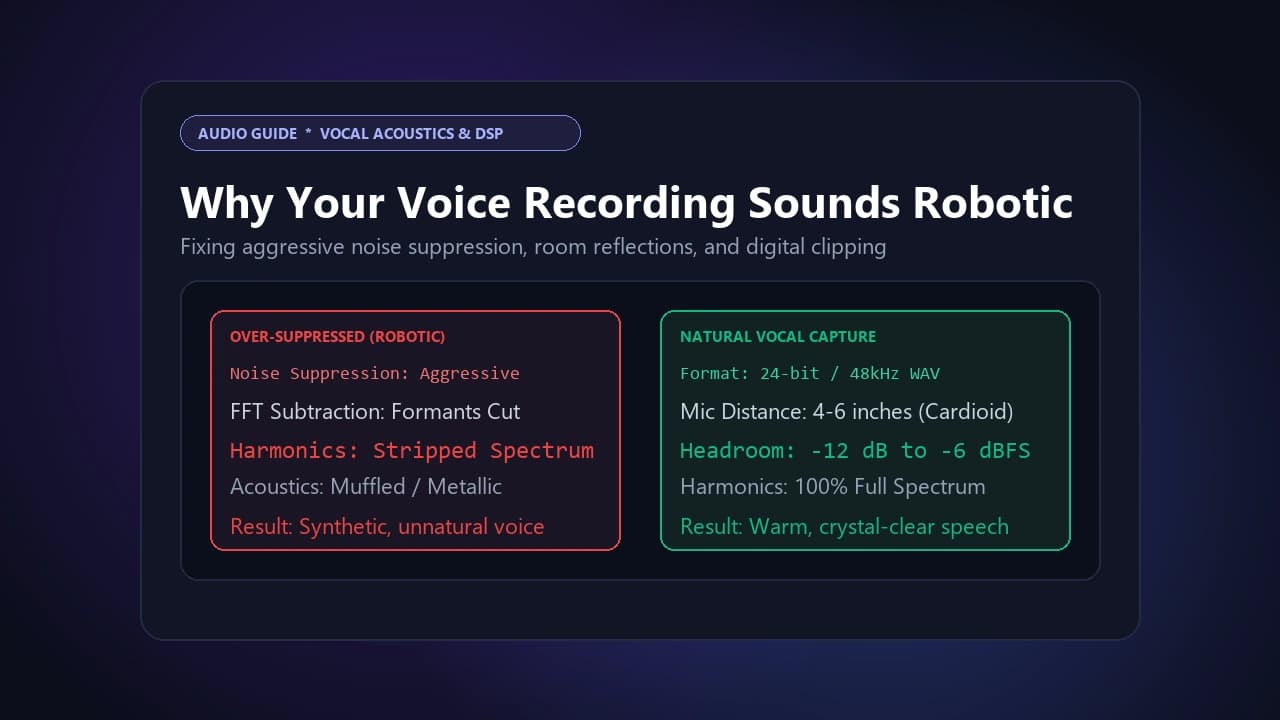
A robotic or metallic vocal recording is almost always caused by aggressive digital noise suppression, not a hardware problem. Modern operating systems and browsers run real-time DSP algorithms — Acoustic Echo Cancellation, Noise Suppression, and Automatic Gain Control — that analyze your audio using Fast Fourier Transform spectral analysis to identify and subtract background noise. When background noise is persistent, these algorithms attenuate frequencies close to your voice's natural formants too aggressively, stripping out vocal harmonics and introducing a synthesized, metallic quality. Buffer underruns in the browser's audio thread can compound this by dropping samples, adding micro-stutters that sound robotic. The fix is usually disabling your browser or OS's built-in noise suppression constraint and handling noise reduction as a separate, gentler post-processing step instead of letting real-time suppression run unchecked.
Why Is My Voice Recording Echoey?
An echoey or hollow recording has two distinct causes, and identifying which one you are experiencing determines the correct fix:
1. Room Acoustics and Flutter Echo
Sound waves bounce off untreated, parallel hard surfaces like walls, windows, and hardwood floors. This acoustic reflection gets progressively worse the farther your microphone sits from your mouth, because physical distance increases the ratio of reflected ambient sound to direct vocal sound. The fix for room echo is positioning the microphone 4 to 6 inches from your mouth, reducing the input gain, and utilizing a directional (cardioid) polar pattern to reject sound arriving from the sides and rear.
2. Audio Feedback Loops
Feedback occurs when your operating system's audio mixer routes microphone input back into an active playback device, such as open laptop speakers, or when software monitoring runs without proper buffer delay compensation. The fix for feedback loops is simple: mute your monitor speakers and wear headphones during recording sessions, or disable direct software monitoring in your audio settings.
Fixing Muffled or Dull Recordings
If your voice sounds muffled, boomy, or lacks high-end clarity, verify your microphone's capsule orientation. Speaking into the side or rear of a directional microphone rather than directly on-axis causes severe off-axis frequency attenuation. This issue frequently occurs with built-in webcam microphone arrays, which default to picking up ambient room acoustics rather than focused nearfield speech. Realigning your speaking angle to face the capsule directly or selecting an external USB microphone resolves most muffled vocal recordings instantly.
Fixing Audio Clipping and Digital Distortion
Digital clipping occurs when your vocal signal exceeds the maximum representation ceiling allowed by fixed-point digital audio (0 dBFS). Once an acoustic peak reaches this ceiling, the tops and bottoms of the waveform are flattened into harsh square waves, generating severe harmonic distortion that cannot be cleanly repaired in post-production.
Best practices for gain staging and headroom:
- Target peak levels between −12 dBFS and −6 dBFS to preserve safety headroom for spontaneous vocal peaks.
- Position a pop filter 2 to 3 inches in front of the capsule to disperse high-velocity plosives (such as "p" and "b" sounds).
- Avoid speaking too close to directional microphones to prevent excessive proximity effect bass buildup.
Microphone Not Detected in Browser
When a web browser fails to detect your microphone, the problem almost always stems from permission restrictions rather than hardware failure. Modern browsers enforce strict privacy sandboxes, blocking audio hardware access until you explicitly grant permission. If you accidentally clicked "Block" on a permission prompt, the browser will permanently remember that choice. Open your browser's site settings to re-enable microphone access, and ensure your operating system's security settings (Windows Privacy & Security or macOS System Settings → Privacy & Security → Microphone) have granted the browser permission to access audio input devices.
WAV vs. MP3 for Voice Recording — Which Should You Use?
Choosing the appropriate recording format depends on your production workflow:
Format Characteristics and Tradeoffs:
- WAV (Linear PCM): Uncompressed studio quality. Essential for vocal tracking, voiceovers, and transcription source files. Tradeoff: Large file footprint (~10 MB per minute of mono 24-bit/48kHz audio).
- MP3: Lossy compressed format. Ideal for finalized podcast episodes, audiobooks, and web streaming. Tradeoff: Discards high-frequency harmonics to reduce file size; lost quality cannot be recovered.
- WebM (Opus): Modern, low-latency container for real-time browser recording and voice messaging. Tradeoff: May require conversion before importing into legacy audio workstations.
- FLAC: Lossless compression retaining 100% of PCM data at roughly half the file size of WAV. Tradeoff: Inconsistent playback compatibility across older browser engines.
If you have existing video footage containing dialogue that you need to convert into standalone audio files for podcasting, extract the track in seconds using our Video to MP3 Converter.
Sample Rate: 44.1kHz vs. 48kHz
Human speech fundamentals occupy 85 Hz to 255 Hz, while vocal harmonics and sibilants ("s", "f", "th") extend upwards to 8 kHz and 12 kHz. A 44.1kHz sample rate (the historical Compact Disc standard) captures these frequencies with complete fidelity. However, if your vocal recording is destined for video production, YouTube, or broadcast media, record at 48kHz. The 48kHz sample rate is the native timing standard for digital video and WebRTC audio streams. Capturing at 48kHz prevents sample rate conversion artifacts when importing into video editing software.
Why Uncompressed Audio Matters for Speech-to-Text
Automated speech recognition models (such as OpenAI Whisper and browser-based Web Speech engines) rely on subtle acoustic transients and high-frequency phonemes to distinguish homophones and accented words. Lossy compression algorithms (like MP3) aggressively discard low-amplitude frequency bins to save bandwidth, degrading transcription accuracy. Recording clean, uncompressed source audio measurably enhances automated transcription precision.
If you want to synthesize natural spoken audio from written notes or reverse the workflow entirely, explore our Text to Speech tool.
Recording Lecture Notes and Remote Interviews
When recording university lectures, distance and HVAC reverberation are your primary obstacles. Sitting closer to the speaker and applying a high-pass filter around 100 Hz eliminates low-frequency building rumble without diminishing vocal clarity. When you need to capture both the presenter's visual slides and room audio simultaneously during seminars or software demos, switch to our Screen Recorder.
For remote podcast interviews, capturing local audio in each participant's browser provides a significant fidelity upgrade over recording meeting calls. Teleconferencing platforms heavily compress audio across variable networks, introducing dropouts and latency artifacts. When each participant records an isolated local track on their own device, network instability cannot compromise your audio quality.
Frequently Asked Questions
Why does my voice sound different when recorded compared to how I hear myself?
You perceive your spoken voice through both air conduction (sound waves traveling to your eardrums) and bone conduction (vocal cord vibrations resonating through your skull bones). Microphones only capture air-conducted sound, which naturally sounds thinner and higher in pitch than your internal self-perception.
Can I fix a robotic-sounding recording after the fact?
Only minimally. Disabling aggressive browser noise suppression prior to recording prevents metallic artifacts from occurring. Once spectral subtraction algorithms remove natural vocal harmonics, the missing data cannot be perfectly reconstructed.
Should I record in WAV or MP3?
Always record and edit in WAV to preserve maximum acoustic fidelity without generational compression loss. Only convert to MP3 for final distribution once your editing and leveling are complete.
Why won't my browser detect my microphone?
Check your browser's site permissions for the page and confirm microphone access is set to "Allow." Also check your operating system's privacy settings to ensure the browser application has system-level permission to access audio hardware.
Record crystal-clear vocal audio with zero compression artifacts directly in your browser using the Toolkito Voice Recorder.
Toolkito Engineering Team — Reviewed by TeXCodes Systems Architecture
Contributing writer at Toolkito
More from the Blog & Tools

Tutorials
How to Remove Background from Images for Free Online
Online Voice Recorder
Record crystal-clear microphone audio, lecture memos & speech with zero installation.

Web Performance