Why Your White Text Fails WCAG Contrast (Even Though It Looks Fine) — And What AA vs AAA Actually Requires
Learn why your white text fails WCAG color contrast on bright buttons, what WCAG 2.1 AA vs AAA requires, and how to fix contrast for buttons, dark mode, and placeholders.
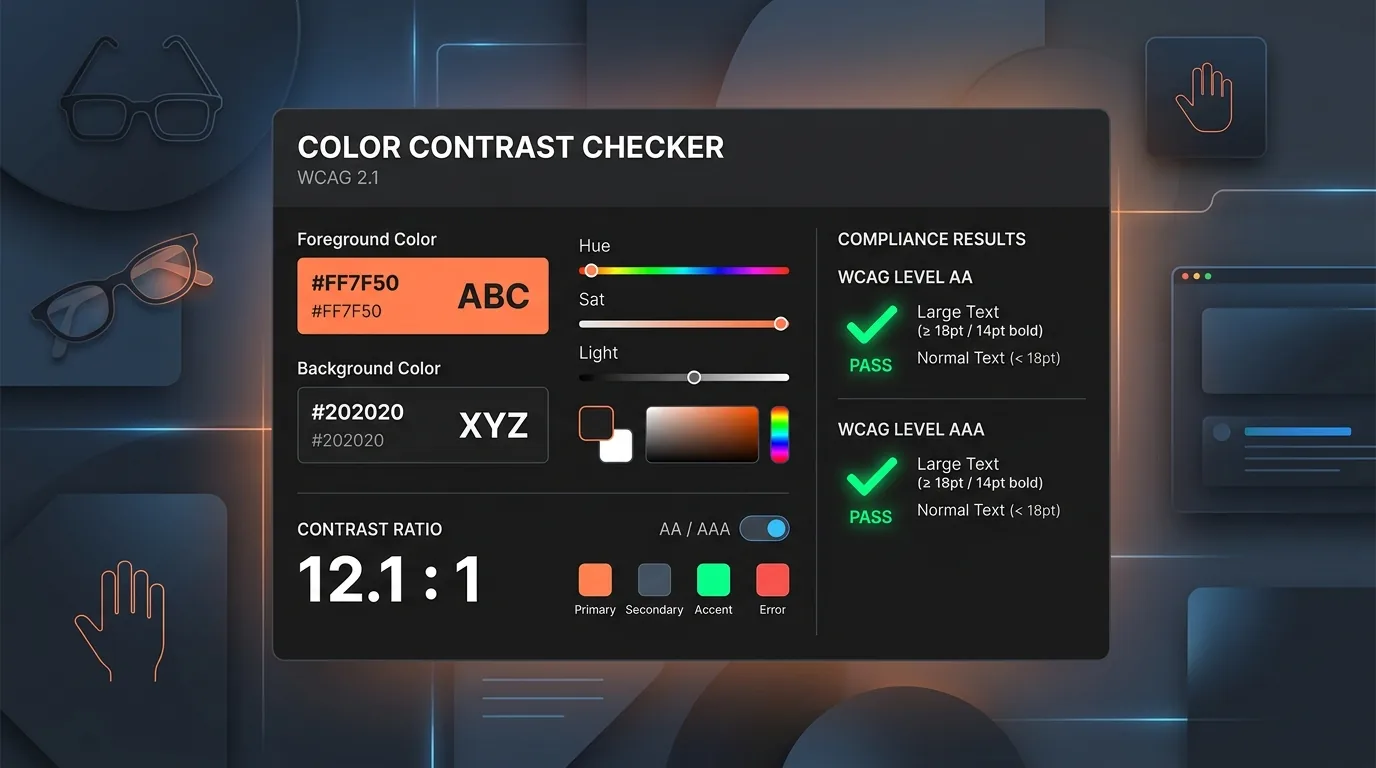
If a contrast checker just told you white text on your brand's orange button fails, and you're staring at it thinking it looks perfectly readable — you're not wrong about your eyes, and the tool isn't wrong either. Both things are true at once, and the reason comes down to math most designers never see explained. This guide covers why bright saturated colors break contrast checks, what WCAG AA vs. AAA actually requires (and when you legally need which one), and the specific UI components — buttons, placeholders, dark mode, focus rings — that trip people up most often.
Why White Text Fails on Bright Colors
Pure yellow, vibrant cyan, and safety orange all look energetic and highly visible to the human eye — but pair white text on top of pure yellow (#FFFF00) and you get a contrast ratio of roughly 1.07:1. That's barely different from white-on-white.
The reason is baked into the WCAG luminance formula itself. It weights color channels based on human eye sensitivity:
L = 0.2126R + 0.7152G + 0.0722B
Green makes up 71.52% of perceived luminance in this formula. Any color with a high green channel — yellow, cyan, lime — already sits close to white's luminance value of 1.0. Once your background luminance approaches white, contrasting it against white text becomes mathematically impossible, no matter how vibrant the color looks to your eyes. This isn't a bug in your color picker or the checking tool — it's a direct consequence of how the standard defines "contrast."
The fix: switch the text color to a dark gray or black on any high-luminance background, or darken the background token itself. There's no clever workaround — the math doesn't bend for brand guidelines.
"The Checker Says Fail But It Looks Fine" — Why This Happens
This is one of the most common frustrations in accessibility work, and it's not a flaw in your judgment. WCAG 2.x calculates contrast as a pure mathematical comparison between two color values — it does not factor in font weight, stroke thickness, or text size. A thin 14px regular-weight label and a bold 48px heading receive the exact same pass/fail score for identical colors, despite being very differently legible in practice.
This limitation is exactly why the Advanced Perceptual Contrast Algorithm (APCA) exists — it's the forward-looking standard expected to anchor WCAG 3, and it does account for spatial frequency, font weight, and light/dark polarity. For now, the practical guidance is: optimize for WCAG 2.x AA compliance as your legal baseline, and treat APCA scores as a secondary quality signal for body text — not the other way around.
WCAG AA vs. AAA — What You're Actually Required to Meet
WCAG Level AA requires 4.5:1 for normal text, 3:1 for large text (18pt+ or 14pt bold+), and 3:1 for non-text UI components and borders.
WCAG Level AAA requires 7:1 for normal text and 4.5:1 for large text, while avoiding low-contrast decorative elements entirely.
Here's the part most guides skip: the ADA doesn't actually specify a numeric contrast ratio in its statutory text. Instead, U.S. federal courts and the Department of Justice have consistently treated WCAG Level AA as the de facto legal compliance benchmark in digital accessibility settlements. Section 508 (covering U.S. federal agencies and contractors) directly incorporates WCAG 2.0/2.1 Level AA criteria into its standards.
Practical takeaway: AA is your legal safe harbor for ADA and Section 508 compliance. Committing your entire palette to AAA is commercially restrictive — it eliminates most vibrant brand colors (bright blues, oranges, greens) and pushes interfaces toward near-monochrome. Most teams selectively apply AAA only to high-stakes content: legal disclosures, form validation errors, critical body copy — not the whole design system.
Component-Specific Contrast Traps
1. Placeholder Text
Designers commonly style placeholder text in light gray (e.g., #A0AEC0 on white, ~2.4:1) to visually distinguish it from real input — but placeholder text is still evaluated under the 4.5:1 requirement (SC 1.4.3). Push contrast up to comply, and usability testing often reveals a new problem: users mistake high-contrast placeholders for pre-filled data and skip the field. Better fix: replace floating placeholders with permanent label elements and persistent helper text instead of fighting the contrast math.
2. Button Borders
Under Success Criterion 1.4.11 (Non-text Contrast), a button's outer boundary needs a 3:1 ratio against the page background if that border is the only visual indicator of the clickable area — even if the text inside the button passes easily. A white button with a pale gray border on a white canvas fails this, regardless of solid black label text inside it.
3. Dark Mode
Saturated brand accent colors that work fine on light backgrounds often cause visual vibration or "halation" against dark surfaces. The fix isn't a universal formula — it's usually desaturating primary accents and using tonal surface-elevation tokens instead of relying on shadow depth alone. Pair this with our Color Converter to inspect HSL lightness channels across your color palette.
4. Gradients
Standard contrast checkers only accept single hex values, so text over a gradient needs to be checked at both endpoints of the color ramp — text can pass comfortably at one end and fail completely at the other. When designing layered backdrops, our CSS Gradient Generator helps verify endpoint color values.
5. Focus Indicators (WCAG 2.2)
Success Criterion 2.4.13 (finalized in WCAG 2.2) requires keyboard focus rings to hit a 3:1 ratio against both the unfocused component and the adjacent page background. Years of outline: none in production CSS make this a common retrofit gap — if your focus states were never designed for contrast, they almost certainly don't meet this now.
6. Disabled Buttons
Disabled/inactive controls are explicitly exempt from contrast requirements under SC 1.4.3 and 1.4.11 — but automated scanners frequently can't evaluate component state and flag them as failures anyway. Using aria-disabled="true" rather than fully removing the element from the DOM gives auditors a clear, standards-compliant signal. If you need to compress screenshots for accessibility documentation, run them through our Image Compressor.
Frequently Asked Questions
Why does my contrast checker fail a color that looks completely readable?
WCAG 2.x math doesn't account for font weight or size — only the raw color values. A bold, large heading can look far more legible than the math implies, but the pass/fail score treats it identically to thin body text.
Do I legally need AAA compliance, or is AA enough?
For most commercial and government contexts in the U.S., WCAG Level AA is the accepted legal benchmark for ADA and Section 508 compliance. AAA is typically reserved for specialized contexts like public health portals, not general commercial sites.
Are disabled buttons required to meet contrast minimums?
No — WCAG explicitly exempts inactive/disabled controls from SC 1.4.3 and 1.4.11. Mark them with aria-disabled="true" so automated auditors can recognize the exception.
What's the difference between APCA and WCAG 2 contrast scoring?
WCAG 2 uses a fixed mathematical ratio regardless of font weight or size. APCA — expected to underpin WCAG 3 — factors in spatial frequency, weight, and light/dark polarity, giving a more perceptually accurate (but not yet legally required) measure of readability.
Test any foreground and background color combinations instantly with our Toolkito WCAG Contrast Checker.
Toolkito Engineering Team — Reviewed by TeXCodes Systems Architecture
Contributing writer at Toolkito
More from the Blog & Tools

Tutorials
How to Remove Background from Images for Free Online
WCAG Contrast Checker
Test color contrast ratios against WCAG AA and AAA compliance in real time.

Web Performance